Setting up Braintree
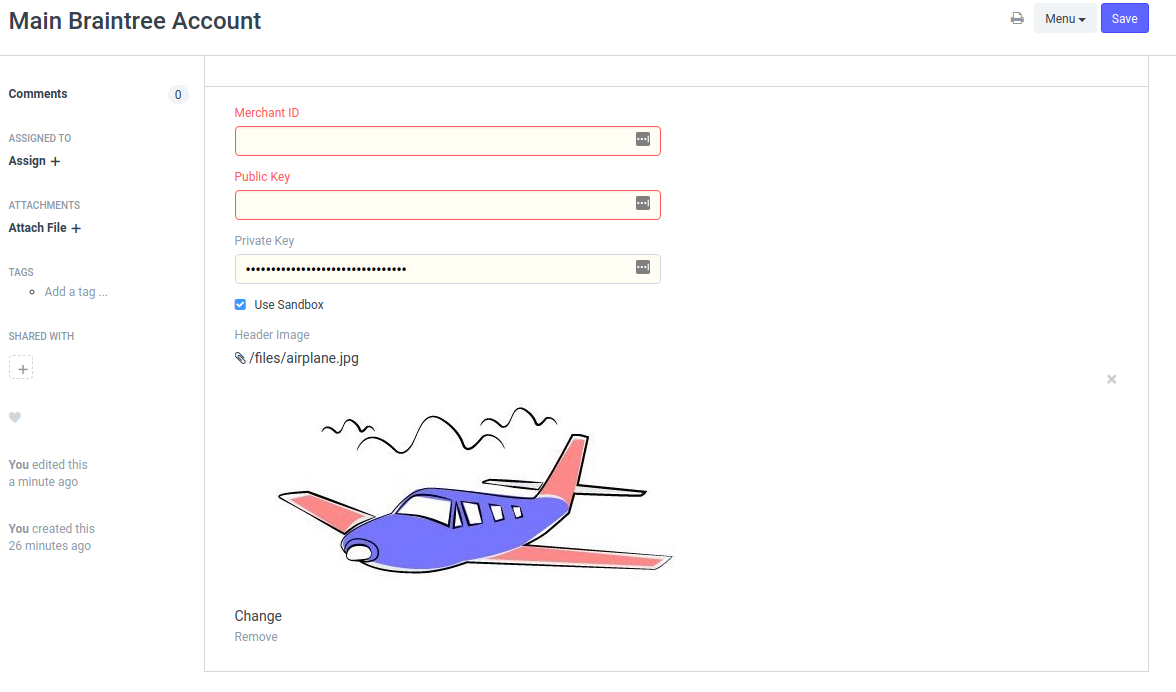
To setup Braintree, go to Explore > Integrations > Braintree Settings
Setup Braintree#
To enable Braintree in your EnigmaERP account, you need to configure the following parameters:
- Merchant ID
- Public Key
- Private Key
You can setup several Braintree payment gateways if needed. The choice of payment gateway account will determine which braintree account is used for the payment.
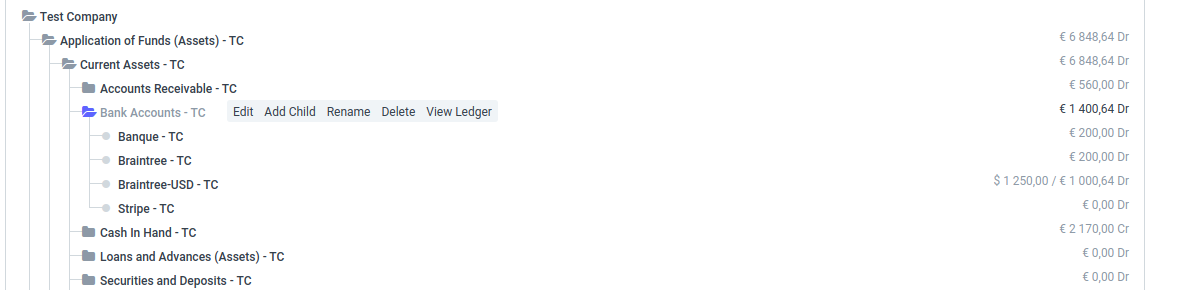
On enabling service, the system will create Payment Gateway record and an Account head in chart of account with account type as Bank.
It will also create a payment gateway account. You can change the default bank account if needed and create a template for the payment request.
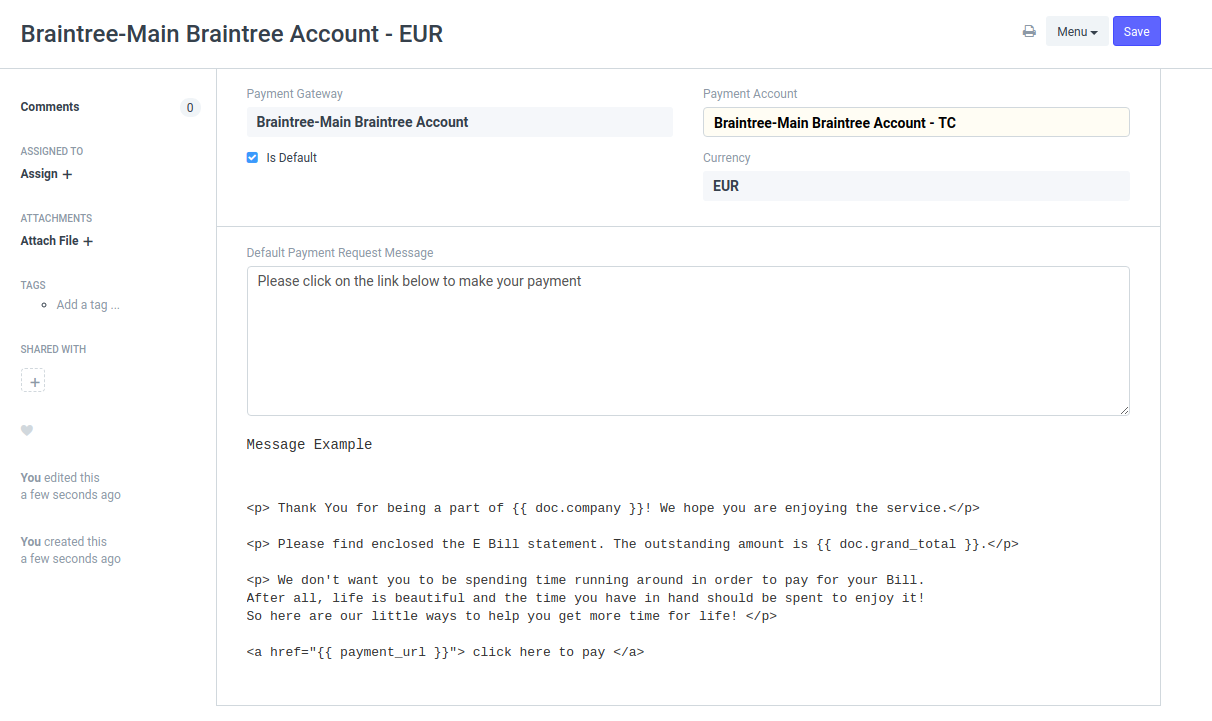
After configuring the Payment Gateway Account, your system is able to accept online payments through Braintree.
Supporting transaction currencies#
"AED","AMD","AOA","ARS","AUD","AWG","AZN","BAM","BBD","BDT","BGN","BIF","BMD","BND","BOB",
"BRL","BSD","BWP","BYN","BZD","CAD","CHF","CLP","CNY","COP","CRC","CVE","CZK","DJF","DKK",
"DOP","DZD","EGP","ETB","EUR","FJD","FKP","GBP","GEL","GHS","GIP","GMD","GNF","GTQ","GYD",
"HKD","HNL","HRK","HTG","HUF","IDR","ILS","INR","ISK","JMD","JPY","KES","KGS","KHR","KMF",
"KRW","KYD","KZT","LAK","LBP","LKR","LRD","LSL","LTL","MAD","MDL","MKD","MNT","MOP","MUR",
"MVR","MWK","MXN","MYR","MZN","NAD","NGN","NIO","NOK","NPR","NZD","PAB","PEN","PGK","PHP",
"PKR","PLN","PYG","QAR","RON","RSD","RUB","RWF","SAR","SBD","SCR","SEK","SGD","SHP","SLL",
"SOS","SRD","STD","SVC","SYP","SZL","THB","TJS","TOP","TRY","TTD","TWD","TZS","UAH","UGX",
"USD","UYU","UZS","VEF","VND","VUV","WST","XAF","XCD","XOF","XPF","YER","ZAR","ZMK","ZWD"
Adapted for EnigmaERP from the ERPNext documentation,
© Frappe Technologies Pvt. Ltd. Content licensed under
CC-BY-SA 3.0.
EnigmaERP is a product of Enigma and is not
affiliated with or endorsed by Frappe Technologies Pvt. Ltd.