Stock Reservation
Introduced in Version 15
Stock reservation, also known as inventory reservation, refers to the practice of setting aside a specific quantity of stock or inventory for a particular purpose or customer.
1. Prerequisites#
- Enable Stock Reservation in Stock Settings.

2. Stock Reservation against Sales Order#
- Create a Sales Order.
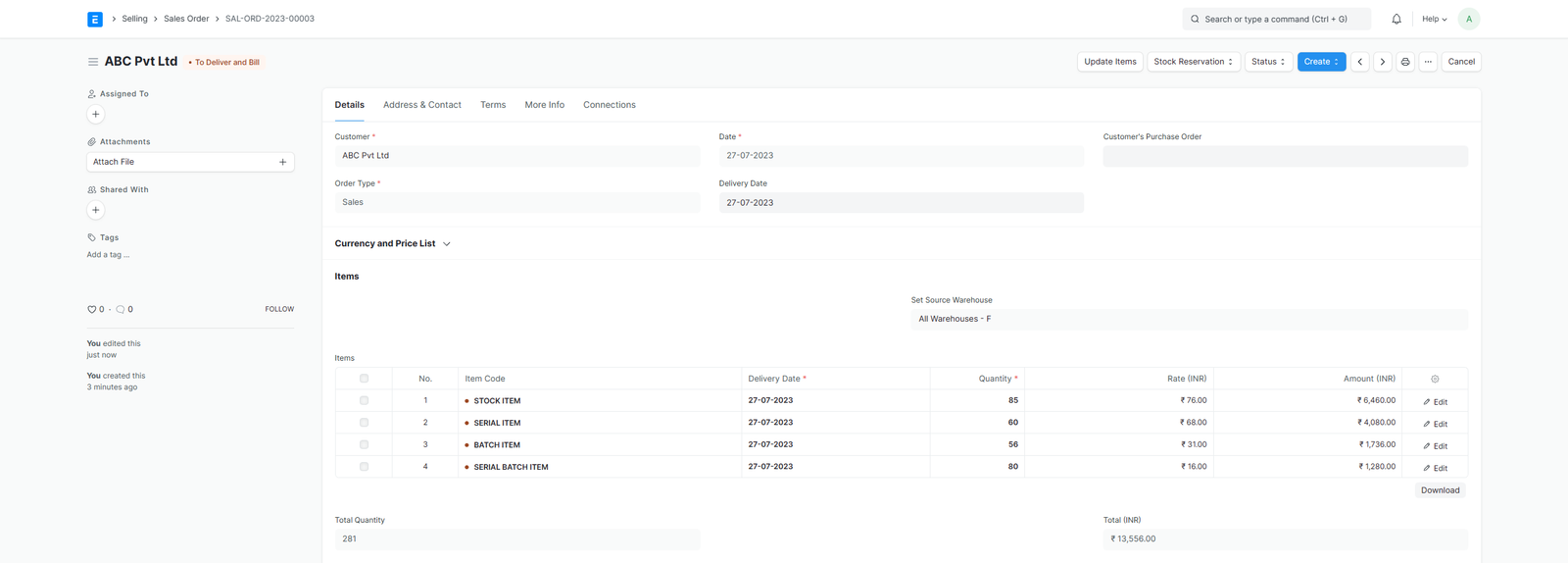
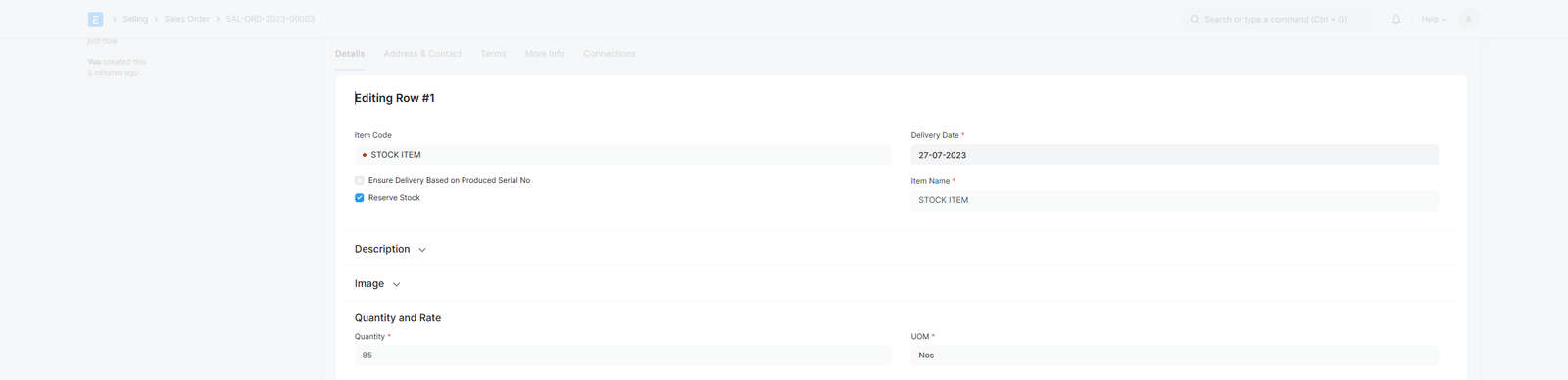
- Check the reserve stock for items you want to reserve.
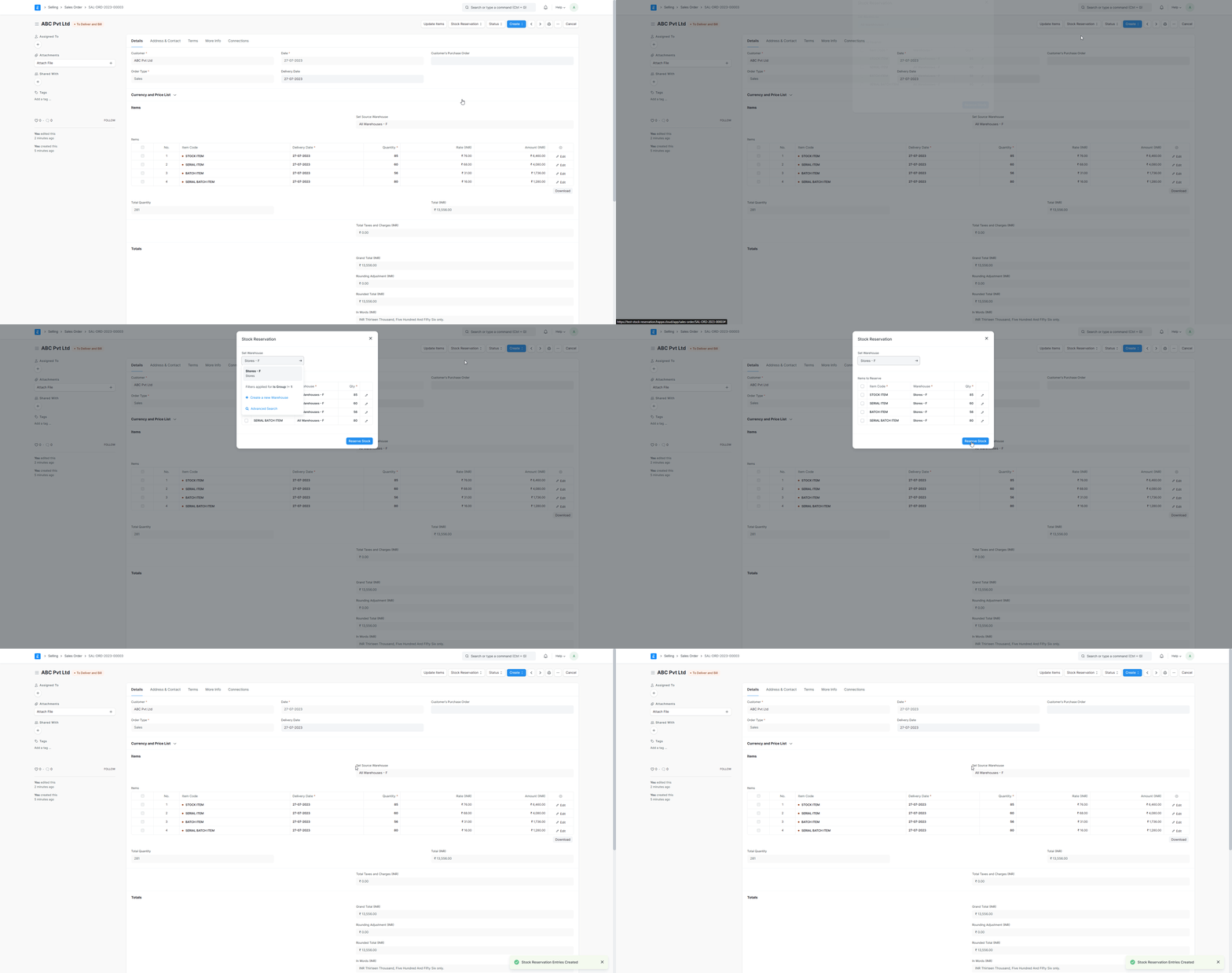
- Click on Stock Reservation, then select Reserve. Choose the warehouse and quantity, then click on the Reserve Stock button.
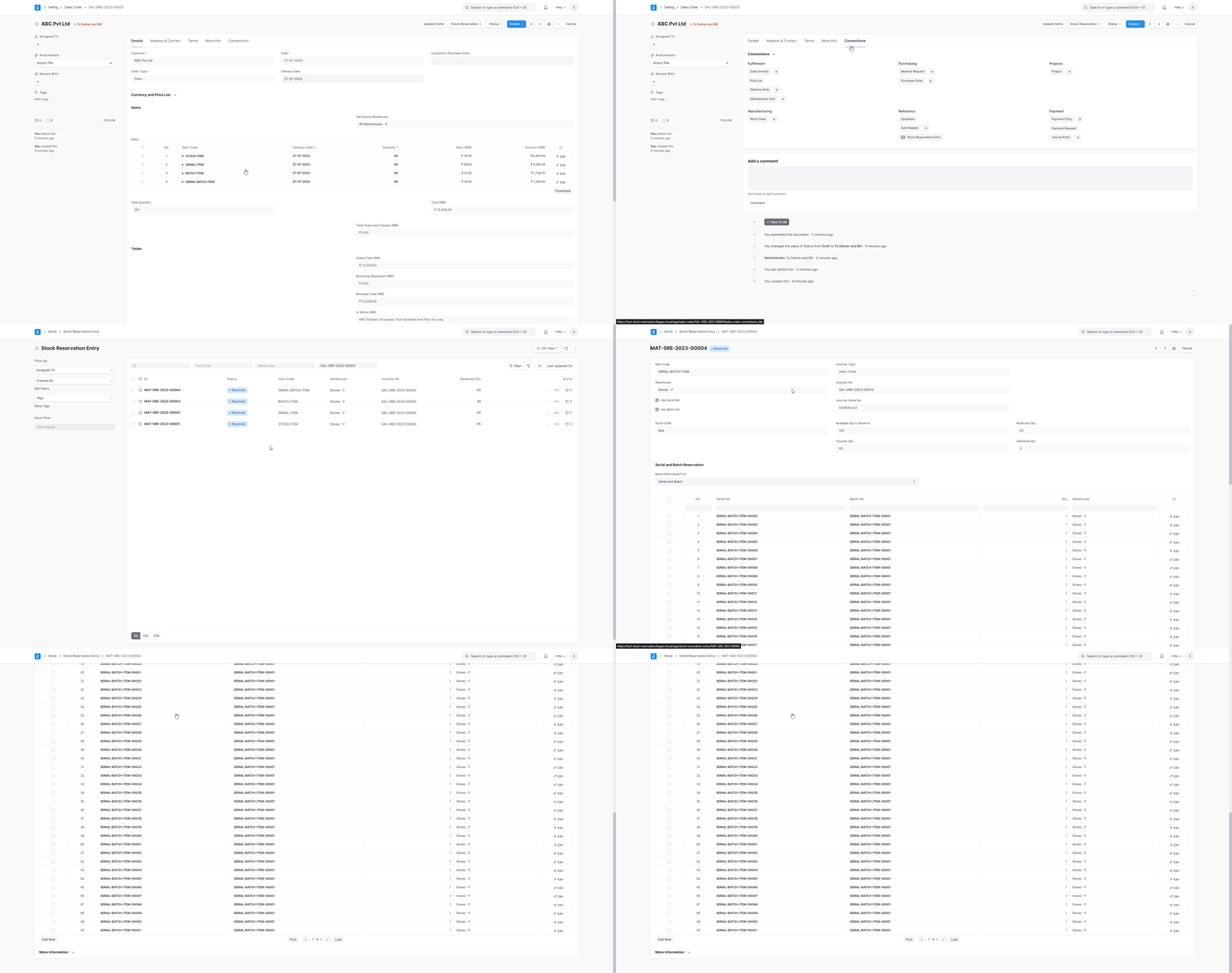
- Stock reservation entries are created against the sales order items.
3. Stock Reservation from Pick List#
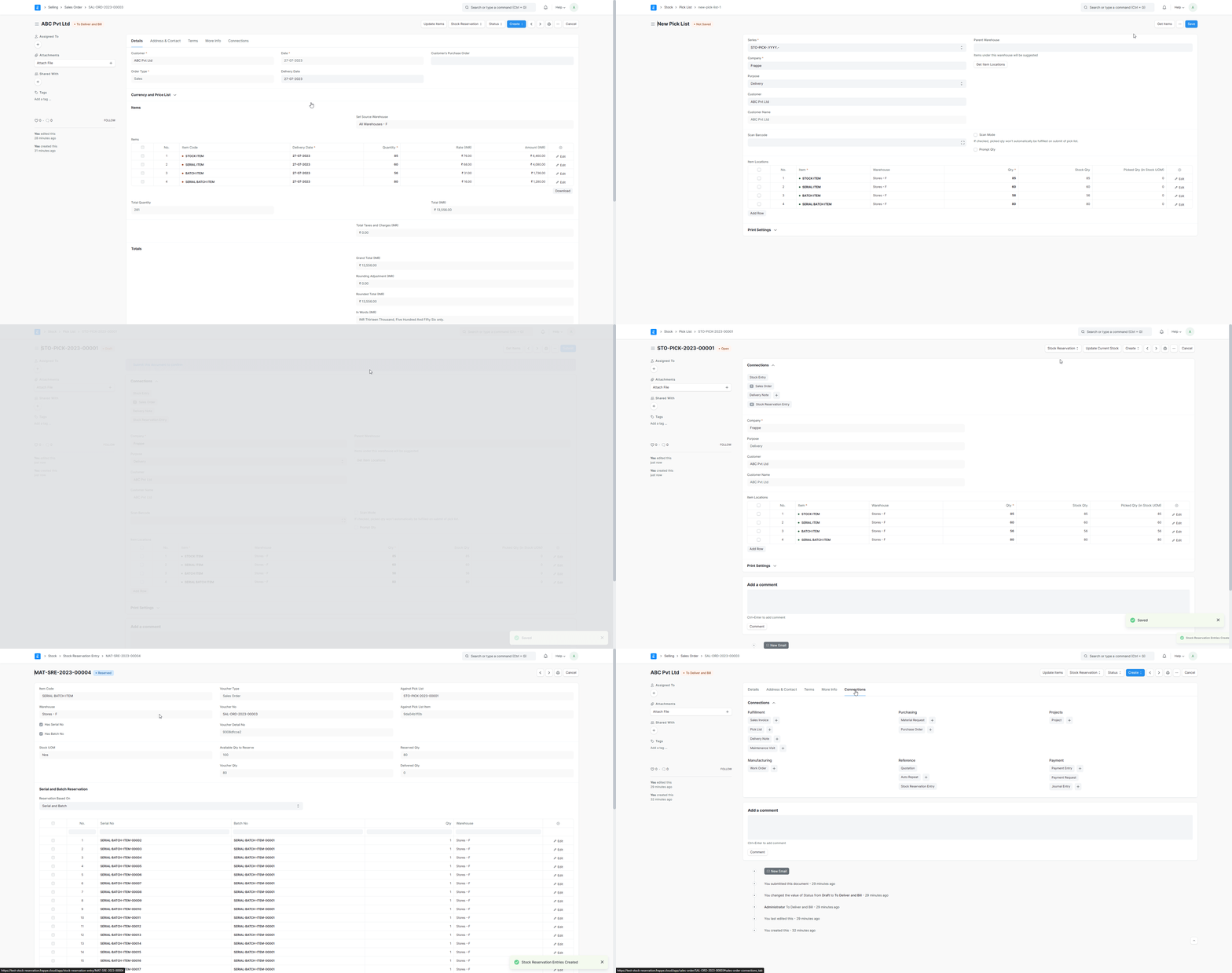
- Create a Sales Order.
- Create a Pick List for the Sales Order.
- In Pick List click on Stock Reservation, then select Reserve, the Stock Reservation Entries will be created against the Pick List.
4. Auto Reserve Stock on Purchase#
- Navigate to Stock Settings and enable Auto Reserve Stock for Sales Order on Purchase.
- Create a Sales Order.
- Create a Material Request from the Sales Order.
- Create Purchase Order from Material Request.
- Complete the process by creating a Purchase Receipt for the Purchase Order. The stock will be automatically reserved upon submission of the Purchase Receipt.
5. Stock Unreservation#
There are two ways to unreserve the stock.
-
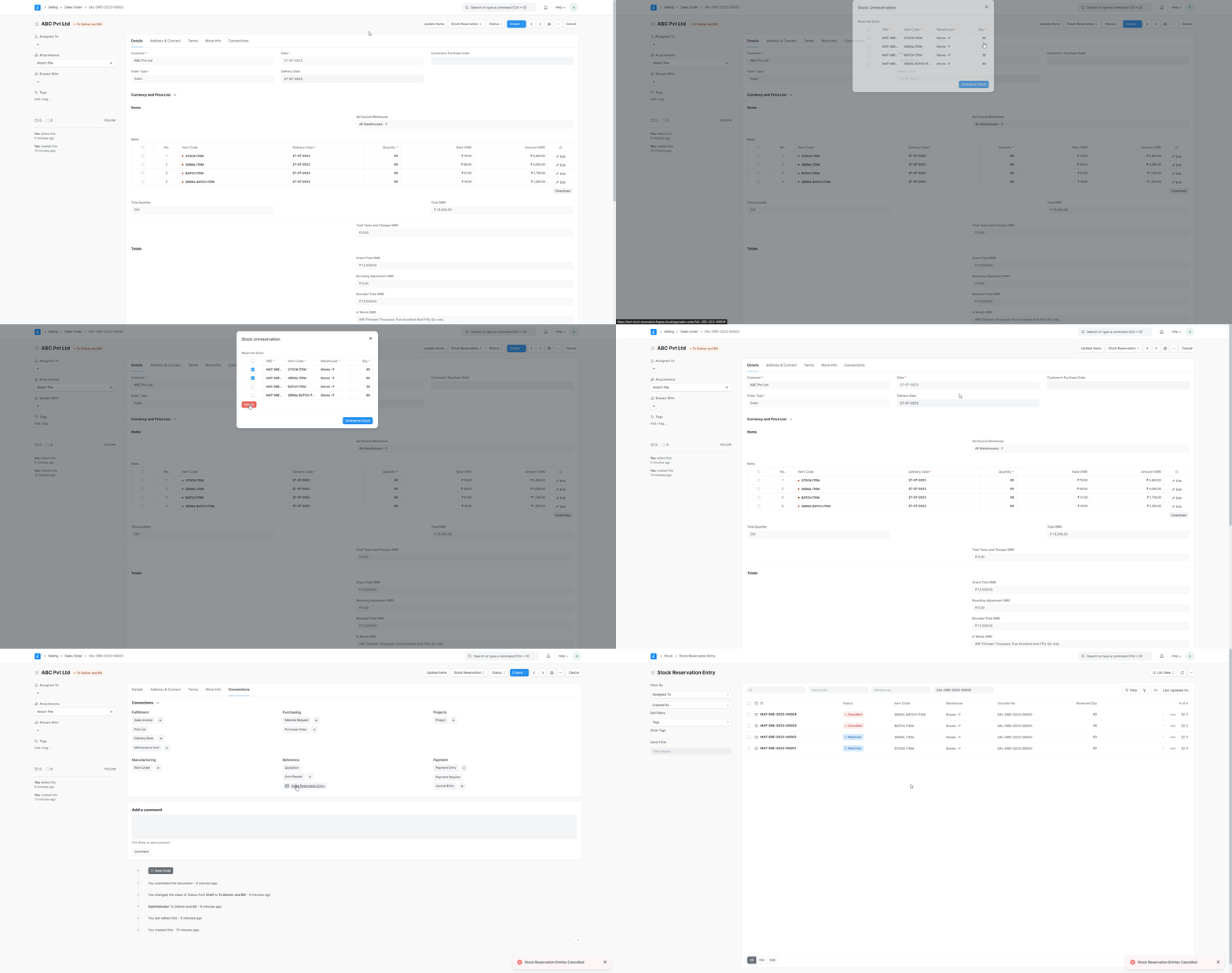
Stock Unreservation from Sales Order or Pick List:
- Open a document and click on Stock Reservation > Unreserve button, the listed Stock Reservation Entries get cancelled.
-
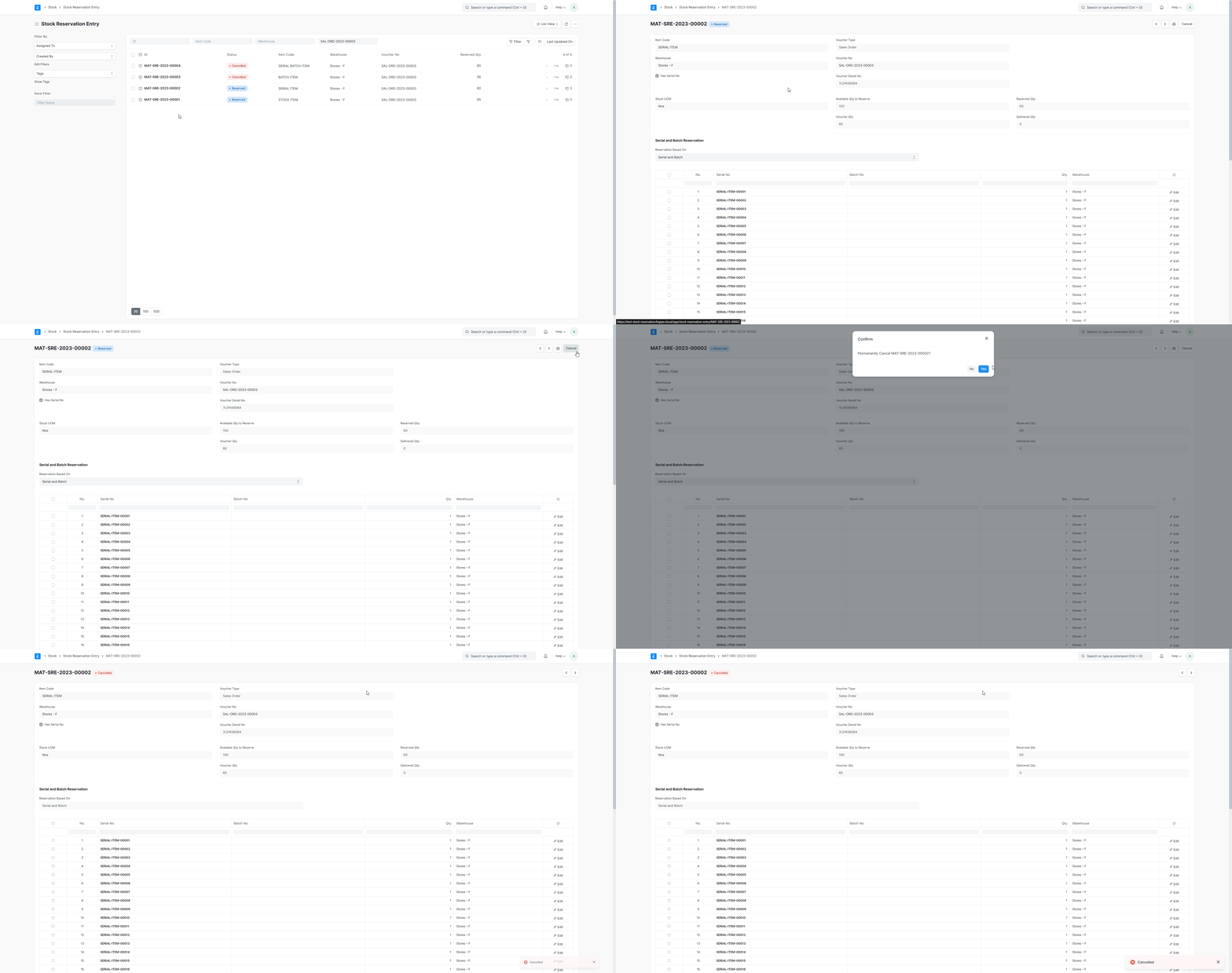
Unreserve the stock from the Stock Reservation Entry DocType:
-
2.1 Open a Stock Reservation Entry and cancel it by clicking the Cancel button.
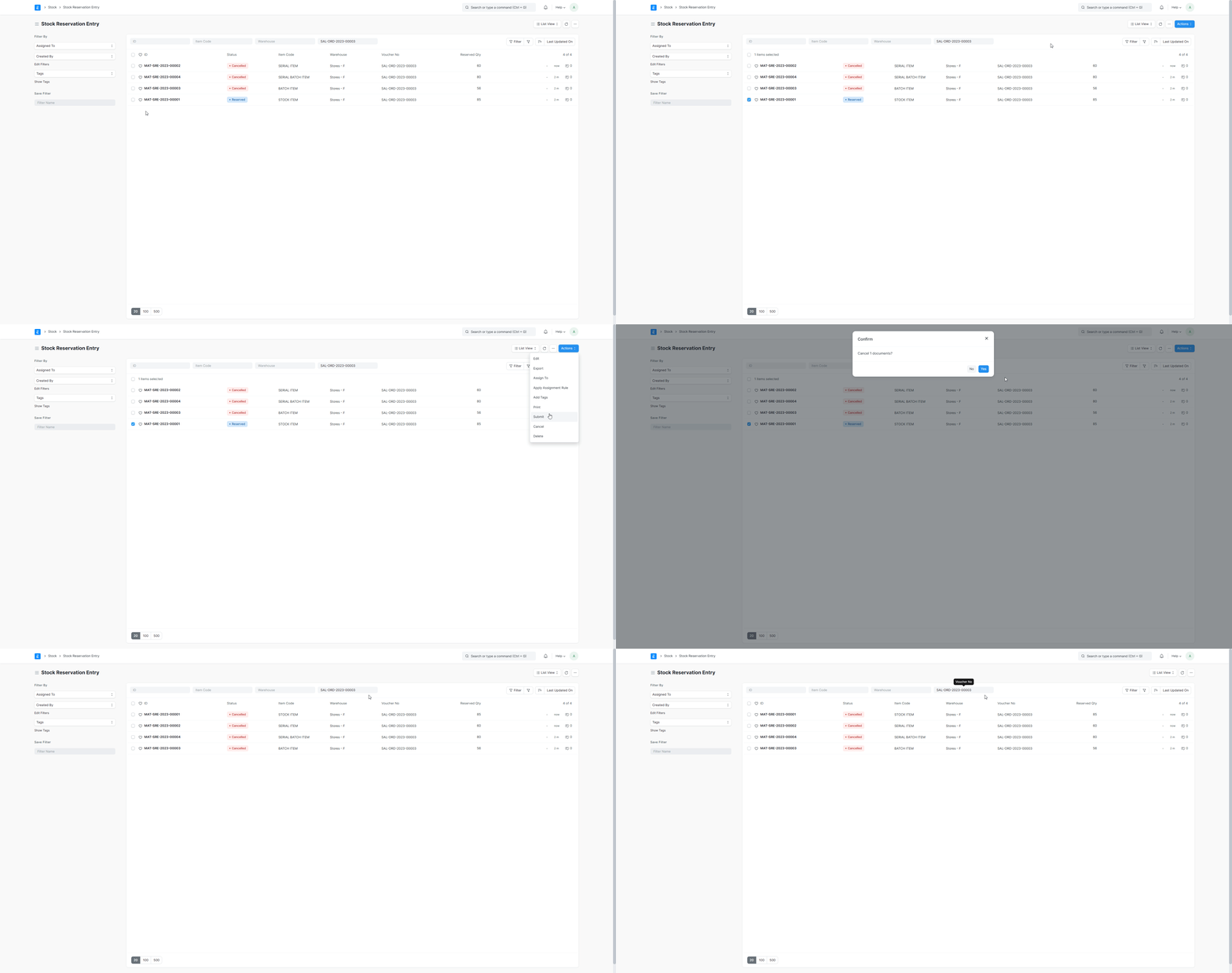
- 2.2 Go to the Stock Reservation Entry List, select the entries you wish to cancel, and then click on Actions > Cancel.
- Open a document and click on Stock Reservation > Unreserve button, the listed Stock Reservation Entries get cancelled.
6. Related Topics#
Adapted for EnigmaERP from the ERPNext documentation,
© Frappe Technologies Pvt. Ltd. Content licensed under
CC-BY-SA 3.0.
EnigmaERP is a product of Enigma and is not
affiliated with or endorsed by Frappe Technologies Pvt. Ltd.